You've heard your friends talking about it. You've seen the "Android Boxes" for sale at the mall. But you're admittedly not a "tech wizard," and you're worried about getting it wrong. Don't worry. Switching to IPTV is actually easier than setting up a new cable box.
Get the Right Device
You need a device to run the IPTV app. While you can use a phone or laptop, for the best TV experience, we recommend:
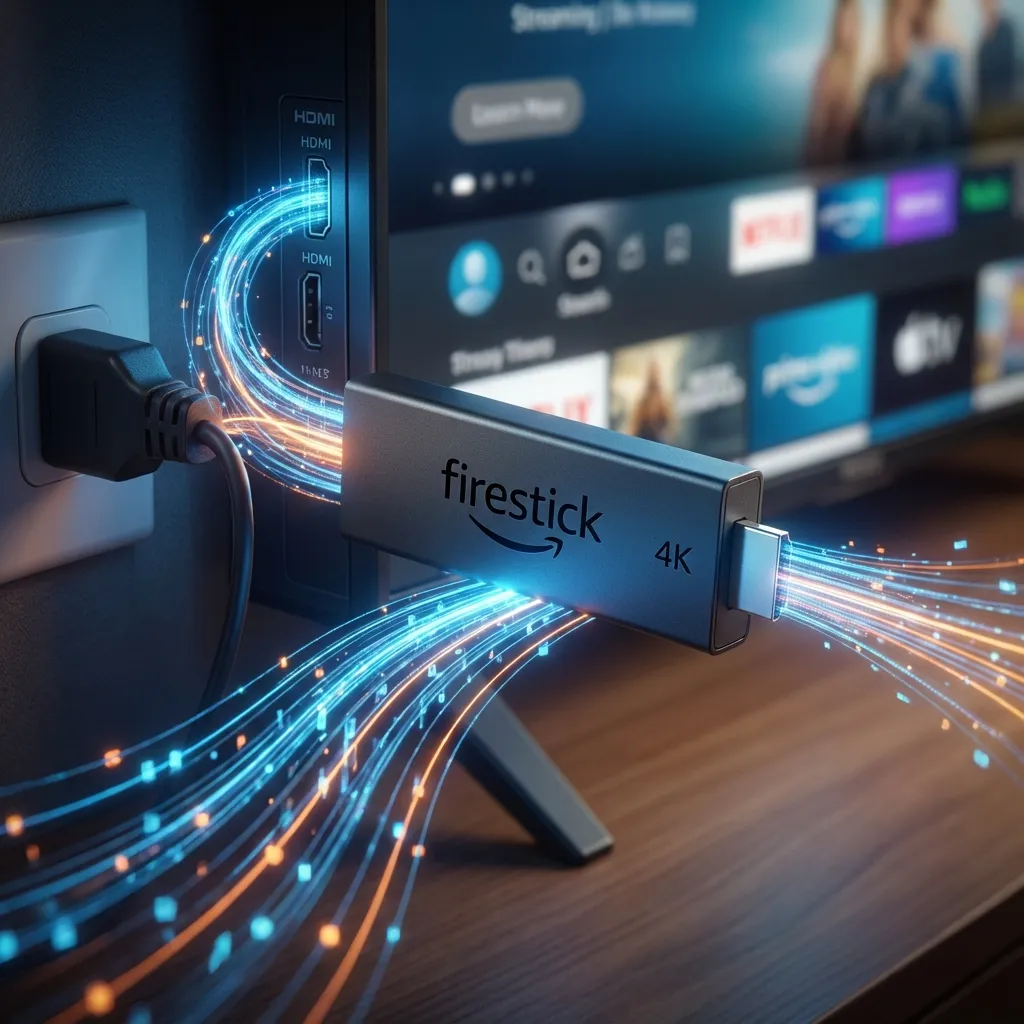
- Amazon Firestick 4K / 4K Max: The best value. Cheap, fast, and easy to find (Best Buy, Amazon).
- NVIDIA Shield Pro: The premium choice. Expensive, but extremely powerful.
- Google Chromecast with Google TV: A good alternative to Firestick.
Avoid relying on the built-in "Smart TV" apps alone, as TV processors are often slow. A Firestick is always better.
Get High-Speed Internet
IPTV streams live video over the internet. For 4K streaming on Smart4k IPTV, we recommend a speed of at least 50 Mbps. Most Canadian households already have this.
Pro Tip: If your Firestick is far from your router, buy a Wi-Fi extender or use an ethernet adapter to prevent buffering.
Choose a Reliable Provider
This is the most critical step. There are thousands of bad providers. You want one with:
- Anti-Freeze Technology
- Canadian Servers (for low latency)
- Good Support (WhatsApp/Email)
Obviously, we recommend Smart4k IPTV because we meet all these criteria and offer a satisfaction guarantee.
Install the App (Downloader)
On a Firestick, you can't find IPTV apps in the standard App Store usually. You need to "sideload" them.
- Go to Find > Search and type "Downloader". Install it.
- Go to Settings > My Fire TV > Developer Options. Turn ON "Install Unknown Apps" for Downloader.
- Open Downloader and enter our code (provided in your welcome email, usually something like 78522) to download the Smart4k App or IPTV Smarters.
Login and Enjoy
Once the app is installed, you will see a login screen asking for:
- Username
- Password
- URL (Server)
These are emailed to you instantly after you purchase a subscription. Enter them, click "Login," and wait for the channels to load. That's it! You have successfully cut the cord.
Still Have Questions?
Our team helps beginners every single day. We can walk you through the process on WhatsApp.
Contact Us for Help